Dynamo vs Custom Revit Add-ins: Choosing the Right Automation
A practical comparison of Dynamo scripts and compiled Revit add-ins on maintainability, performance and deployment, so BIM managers can match each task to the right tool.
By Neo Forge Team · 12 Oct 2026 · 4 min read

Most BIM teams start automating Revit with Dynamo, and for good reason: it is built in, visual and quick to learn. Then the scripts multiply. Some break after a Revit upgrade, some run slowly on large models, and a few become so important that the whole office depends on them. At that point the question changes from "can we automate this?" to "what is the right way to automate this?" This article compares Dynamo scripts and compiled Revit add-ins (typically written in C# against the Revit API) so you can decide task by task.
What Each Tool Actually Is
Dynamo
Dynamo is a visual programming environment that runs inside Revit. You connect nodes into a graph, optionally add Python nodes and community packages, and run the graph through Dynamo or Dynamo Player. It is excellent for exploration, one-off data fixes and project-specific logic.
Compiled add-ins
A compiled add-in is a .NET assembly loaded by Revit at startup through a manifest file. It can add ribbon buttons, dialogs, event handlers and background updaters. It talks to the same Revit API that Dynamo uses underneath, but without the graph layer in between.
Maintainability
This is usually where the decision is made, more than performance.
Dynamo graphs are easy to create but harder to maintain as they grow. Large graphs are difficult to review, diff in version control, or test automatically. They often depend on third-party packages whose versions must match across every machine, and package updates or Revit upgrades can quietly change behaviour.
Add-ins require software engineering skills, but they bring software engineering tools with them:
- Source control with readable diffs and code review
- Unit tests for logic that does not need Revit, and integration tests for logic that does
- Shared libraries, so one fix applies to every command that uses it
- Explicit dependency management instead of per-machine package folders
The trade-off is clear: Dynamo lowers the barrier to writing automation, while add-ins lower the cost of keeping it working over years.
Performance
For small models and simple tasks, the difference is often not noticeable. It becomes relevant when a task touches many elements or runs frequently.
Dynamo adds overhead through its graph execution, list handling and geometry conversion. Python nodes help, but they still run inside the Dynamo environment. Compiled add-ins can control transactions precisely, use filtered element collectors efficiently, and avoid unnecessary geometry work. They can also respond to Revit events or use updaters, which Dynamo is not designed for.
If users regularly wait on a script, or if it struggles on your largest projects, that is a signal worth taking seriously.
Deployment and User Experience
Getting the tool to people
Deploying Dynamo usually means distributing graph files plus the right package versions, and making sure everyone has compatible Dynamo and Revit versions. Dynamo Player makes running scripts easier, but the experience still feels like running a script.
Add-ins are deployed as installers or through managed software distribution. Once installed, the tool appears as a button on the ribbon with a proper interface, input validation and clear error messages. Supporting several Revit versions does require building and testing against each one, which is real ongoing work.
Who uses it
A graph used by its author is very different from a tool used by fifty designers who never open Dynamo. The wider the audience, the more polish and predictability matter.
A Simple Way to Decide
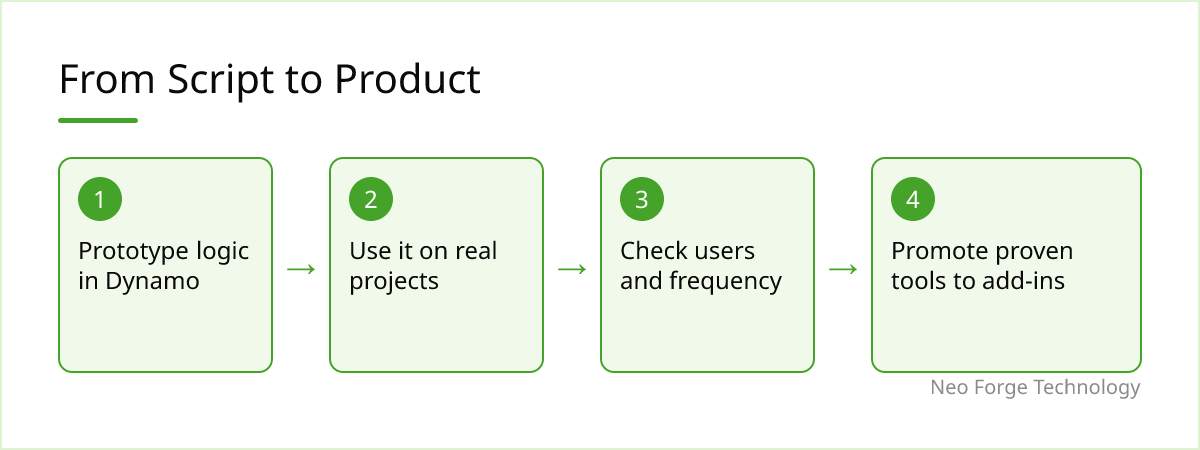
A useful pattern is to treat Dynamo as the prototype and the add-in as the product. Prove the logic in a graph, use it on real projects, and promote it only when it earns its place.
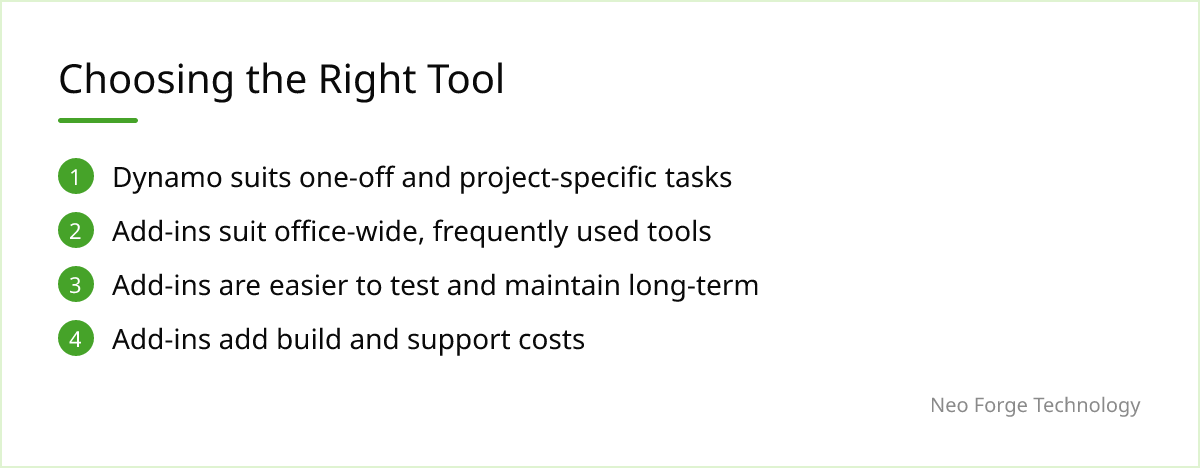
Tasks that typically suit Dynamo:
- One-off data cleanup or parameter population
- Project-specific geometry or layout studies
- Experiments to test whether an idea is worth pursuing
Tasks that typically suit an add-in:
- Office-wide standards checks and QA tools
- Tasks run daily by many users
- Workflows needing events, custom UI or integration with external systems such as databases or web services
When This Framing Doesn't Fit
The split is not always clean. Some offices have strong Python skills and maintain disciplined, version-controlled Dynamo libraries that work well for years. Others build add-ins too early and lock unproven logic into code that nobody revisits. An add-in also brings costs Dynamo avoids: development time, version-by-version builds and someone responsible for fixes. If a task is used rarely and by one person, a compiled add-in is often overkill. And neither tool fixes a poorly defined process; automation tends to amplify whatever standards already exist.
Where Neo Forge Technology Fits
Our CAD / BIM & Engineering Software division builds Revit add-ins and automation tools for teams that have outgrown their scripts, or want to plan the move carefully. A common starting point is reviewing existing Dynamo graphs, identifying which ones carry the most risk or user demand, and converting those into maintainable, tested add-ins while leaving the rest in Dynamo where they belong. If you are weighing that decision, we are happy to talk it through.
- #Revit
- #Dynamo
- #BIM Automation
- #Revit API
- #BIM Management